
How to Re-engage Your PostHog or Mixpanel Users on LinkedIn With Reachy
Your product analytics already knows who signed up and never came back, whose trial ended without a purchase, and who used to log in every day. PostHog and Mixpanel are great at finding these people. They are not built to start a conversation with them. Here is how to export a cohort from either tool, import it into Reachy, and reach those users on LinkedIn with a message that reflects how they actually used your product.
Why re-engage product users on LinkedIn instead of email?
Your lifecycle emails have probably already gone to these people. Many of them never opened. A short, personal LinkedIn message from a founder or a customer success lead lands differently: it comes from a real person, in a place people read, and it invites a reply instead of a click.
These are also the warmest leads you have. They found you, signed up and tried the product. A message that says “I saw you set up your first campaign but stopped before launching, what got in the way?” is relevant in a way no cold message can be.
Which cohorts are worth reaching?
A few that tend to work well:
- Signed up, never activated. They created an account but never reached your key action. Ask what blocked them.
- Trial ended without paying. They saw the product. Find out what was missing, or offer a call.
- Active users who went quiet. Usage dropped over the last few weeks. Check in before they churn.
- Power users. Your most active accounts. Ask for feedback, a review or an introduction.
In PostHog, build each one as a cohort (for example “performed Signed up in the last 60 days and did not perform Campaign launched”). In Mixpanel, the same filters work on the Users report.
The shortcut for PostHog: sync the cohort directly
Since Reachy 3.4.5 you don’t need to export anything from PostHog. Connect it once and every list can use your cohorts:
- In PostHog, create a personal API key with the Read-only preset (or only Project, Cohort and Person set to Read). Copy it right away: PostHog shows it once.
- In Reachy, add a source to a list and choose PostHog. Paste the key, pick the region (US cloud, EU cloud or self-hosted) and the project. Pasting any PostHog page address fills in both.
- Choose a cohort, or all people in the project.
- Under Match to LinkedIn by, pick the person property that holds the LinkedIn URL. Reachy shows how many people have it.
- Choose Keep in sync: Reachy checks the cohort every day and adds new people.
The key stays on your computer, and Reachy only reads. Choose what happens when someone leaves the cohort: keep them, or remove them. People Reachy already contacted keep their history and get nothing more.
Using Mixpanel, or prefer a one-off import? The manual steps below still work.
Step 1: Export the cohort as a CSV
- PostHog: go to People, open the Cohorts tab, open your cohort and export it as a CSV. The export includes each person’s distinct ID and properties. If you prefer, a SQL query over your persons table works too, and you can export its results the same way.
- Mixpanel: open the Users report, filter it down to your cohort and export the list as a CSV.
The one column that matters is the LinkedIn profile URL. Reachy reaches people on LinkedIn, so it needs to know which profile is theirs, and rows without a LinkedIn URL are skipped on import. Analytics tools usually store an email, not a LinkedIn URL, so plan for it:
- Capture it in your product. Ask for it at signup, or offer Sign in with LinkedIn, and store it as a person property. At Reachy, we go further: our PostHog distinct ID is the user’s LinkedIn profile URL, so every export is ready to import.
- Or enrich the export. Run the CSV through an enrichment tool that finds LinkedIn profiles from email addresses, then import the result.
While you’re exporting, add up to three columns you’d like to use in messages, such as the plan, the last feature used or the signup month. More on that below.
Step 2: Import the file into Reachy
In Reachy, click New campaign, choose File import as the source, and drop your CSV or Excel file. Reachy detects the columns on its own: a column with “LinkedIn” and “URL” in its name becomes the profile URL, and first name, last name, company, job title and email are picked up the same way. Map your product columns to Custom field 1, 2 and 3.
The import tells you how many people were added and how many rows were skipped (duplicates, rows without a LinkedIn URL, or beyond your contact limit).
Step 3: Write messages that use their product data
This is where product analytics pays off. In the message editor, open Insert variable and add your custom fields to the connection note, the opener or the follow-ups. For example, with the last feature used in Custom field 1:
Hi [First name], I’m the founder of Acme. I noticed you tried [Custom field 1] last month and haven’t been back since. Was something missing? I’d genuinely like to know.
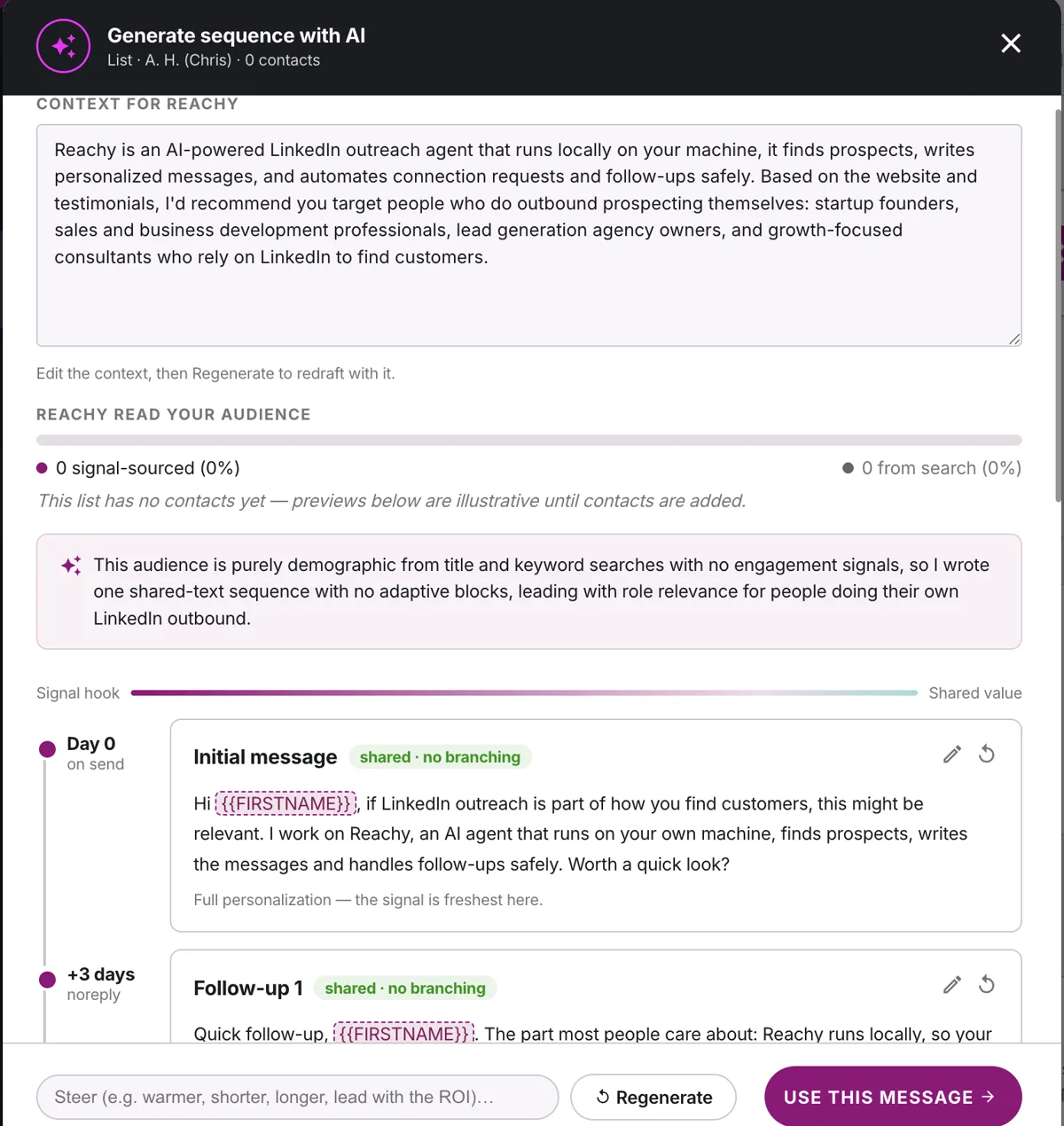
If a contact has no value for a field you used, Reachy flags it instead of sending a message with an empty gap. Reachy’s AI can also draft the sequence for you and personalize each message from the person’s LinkedIn profile, so you can combine what they did in your product with who they are.
Then pick the sending accounts and launch. Reachy runs from your own machine and IP at a human pace, with warm-up and daily limits per account. Follow-ups stop as soon as someone replies, and interested replies show up under Needs you on your dashboard.
Step 4: turn replies into usage
Users who answer are your best signal. Prepare the next step before you launch, and let Reachy’s AI replies draft it:
- A link to the feature they never tried, or to a setup guide
- A discount code for people whose trial ran out (“1 extra month”)
- An interview booking link, if you want to learn why they stopped. See how to recruit user interviews on LinkedIn
When someone replies, Reachy sorts the answer and sends you the draft on Telegram, Slack or Discord with Send, Edit and Don’t send. Nothing goes out without you.
Bonus: see which prospects became customers
The same export works the other way around. Export your paying users from PostHog or Mixpanel, with their LinkedIn URLs, and import them into Reachy as their own list. Then, in Settings → Conversions, select that list.
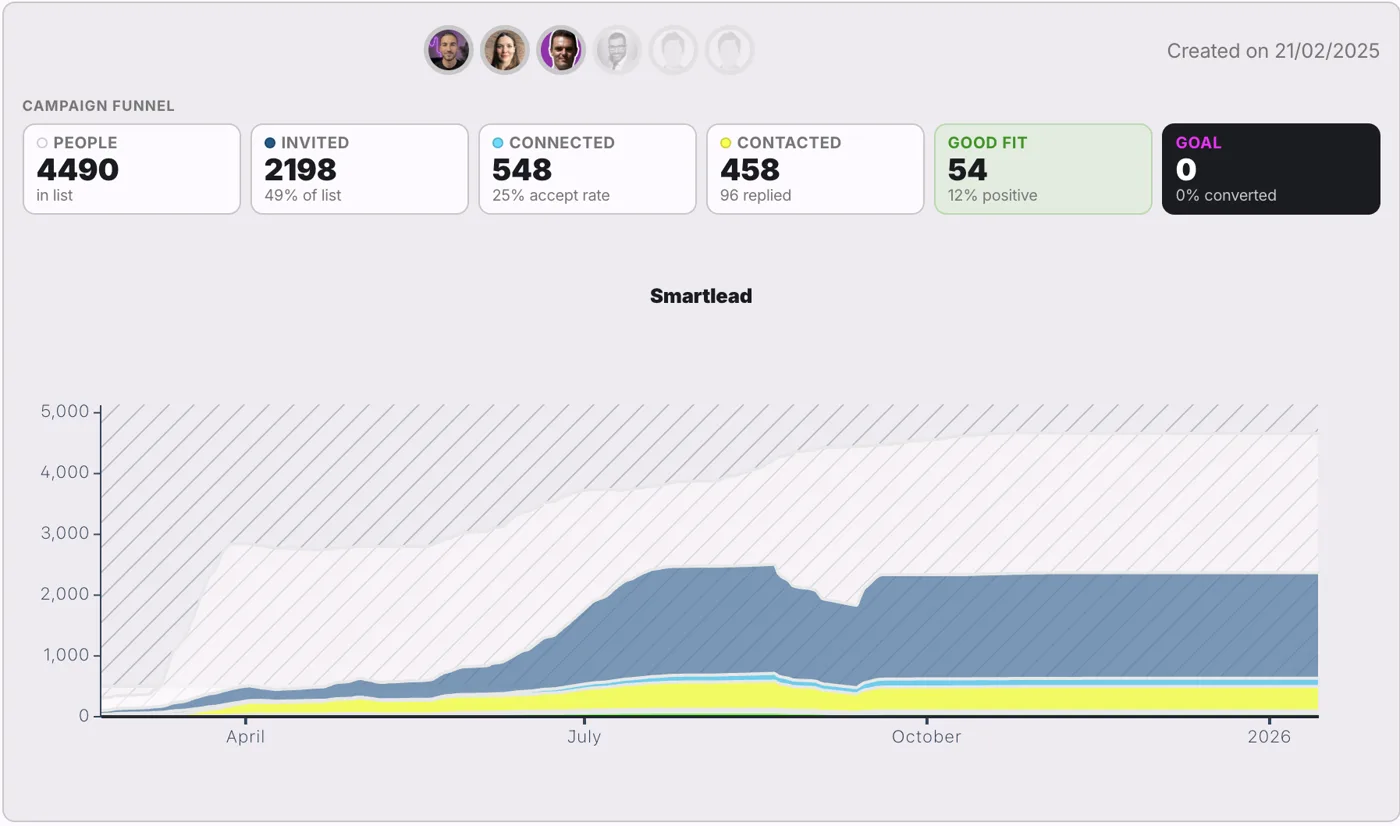
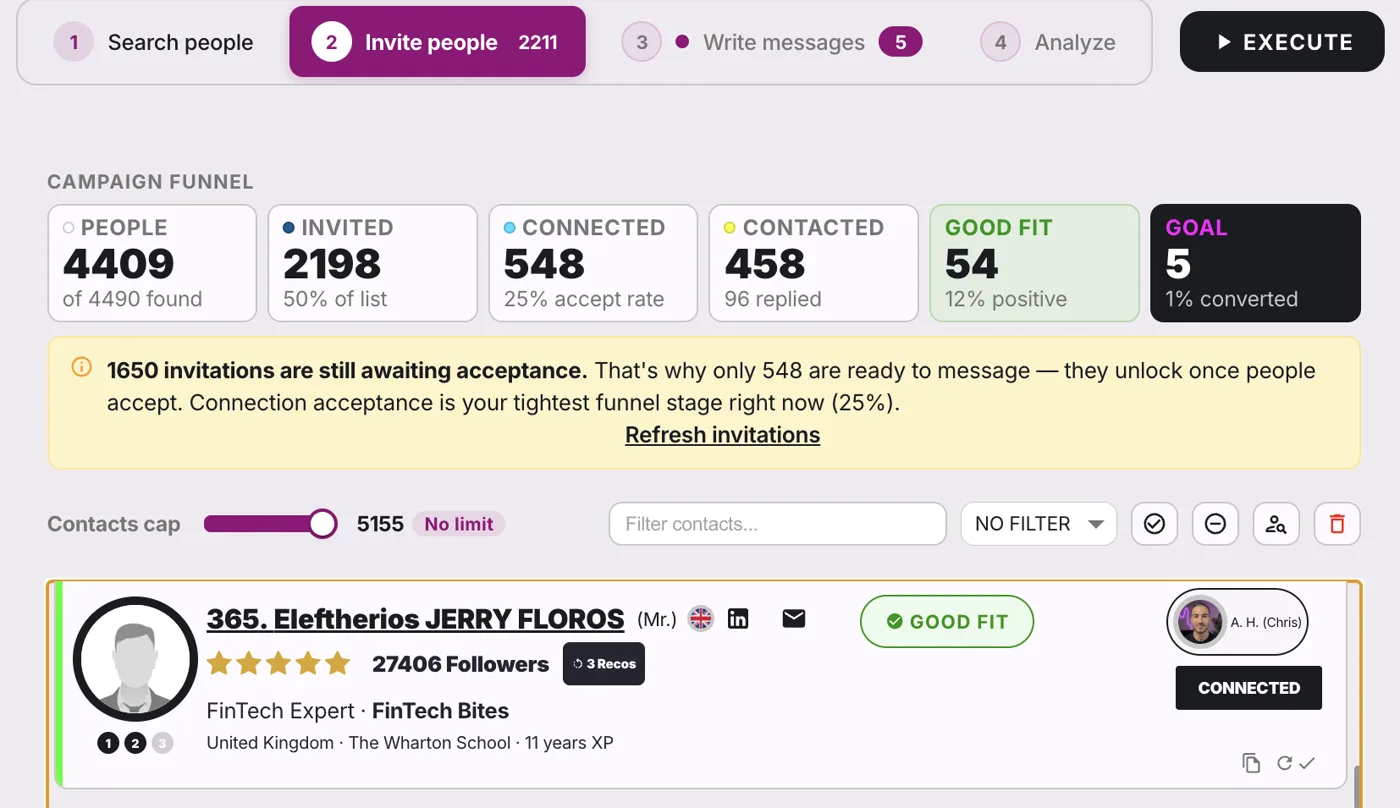
From then on, any contact in your prospecting campaigns who also appears in your paying-users list counts as Converted, and your campaign progress shows how many prospects became customers. We do exactly this with our own “Reachy Users” list. Make it a synced customer list (a PostHog cohort, a Google Sheet or a file, with Daily on) and the numbers stay current on their own.
A word on doing this respectfully
These people chose to try your product, which gives you a good reason to reach out. Keep it short, personal and genuinely useful, make it easy to say “no thanks”, and leave anyone who asked not to be contacted out of your export. A handful of thoughtful conversations will teach you more than any dashboard.
Get started
- Download Reachy for Mac, Windows or Linux. The 14-day trial includes everything, no card required.
- Connect PostHog and pick a cohort, or export one from Mixpanel with a LinkedIn URL column.
- Turn on AI replies with the next step you want, and launch.
For more on the new interface, read how Reachy 3.4 works as an AI agent for LinkedIn outreach, and before you send at volume, check how to stay safe on LinkedIn.
Frequently asked questions
- Can Reachy connect directly to PostHog or Mixpanel?
- For PostHog, yes: connect it once with a read-only personal API key, pick a cohort, and Reachy keeps the list in sync every day. For Mixpanel, export the cohort as a CSV or Excel file and import it; keep exporting to the same place with the same name and Reachy re-reads it every day.
- What does the CSV need to contain?
- Each row needs the person's LinkedIn profile URL, because that is how Reachy finds them on LinkedIn. Rows without one are skipped. Names, company, job title, email and up to three custom fields are optional and are kept with each contact.
- My analytics tool only has emails. How do I get LinkedIn URLs?
- Either capture the LinkedIn URL in your product (at signup or with Sign in with LinkedIn) and store it as a person property, or run your export through an email-to-LinkedIn enrichment tool before importing it into Reachy.
- Can I personalize messages with product data from PostHog or Mixpanel?
- Yes. Map up to three columns of your export (for example plan, last feature used or signup month) to Custom field 1, 2 and 3 during import, then insert them into the connection note or messages. Reachy flags any contact whose field is empty instead of sending a message with a gap.